
INTERNET STICK CS-18 - 3G/4G Key NOKIA - Free user manual and instructions
Find the device manual for free INTERNET STICK CS-18 NOKIA in PDF.


| Product type | 3G/4G USB key (wireless modem) |
| Brand | NOKIA |
| Model | INTERNET STICK CS-18 |
| Supported networks | GSM 850/900/1800/1900, UMTS 850/1900/2100 HSPA |
| Data rates | Up to 7.2 Mbit/s download (HSPA) |
| Connectivity | USB 2.0, compatible with USB 1.1 |
| SIM card | Required (standard size) |
| Memory card reader | Yes, microSD (up to 32 GB) |
| Compatible operating systems | Windows XP SP3, Vista, 7; Mac OS X 10.4, 10.5, 10.6 |
| Included software | Nokia Internet Modem (automatic installation) |
| LED indicator | Red, green, blue (depending on network status) |
| Dimensions (approx.) | 85 x 25 x 12 mm |
| Weight (approx.) | 20 g |
| Power supply | Via USB port (5 V, max 500 mA) |
| Operating temperature | 0 °C to 40 °C |
| Maintenance and cleaning | Soft, dry cloth; do not use chemical products |
| Safety | Do not expose to water; keep out of reach of children |
| Spare parts | USB cap, CA-150D cable (optional) |
| Repairability | Repairs only by qualified personnel |
| General information | Manufactured in 2009; compliant with directive 1999/5/EC |
Frequently Asked Questions - INTERNET STICK CS-18 NOKIA
User questions about INTERNET STICK CS-18 NOKIA
0 question about this device. Answer the ones you know or ask your own.
Ask a new question about this device
Download the instructions for your 3G/4G Key in PDF format for free! Find your manual INTERNET STICK CS-18 - NOKIA and take your electronic device back in hand. On this page are published all the documents necessary for the use of your device. INTERNET STICK CS-18 by NOKIA.
USER MANUAL INTERNET STICK CS-18 NOKIA
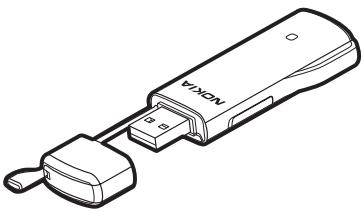
Nokia Internet Stick CS-18 Quick Start Guide
natural_image
Line drawing of a Nokia 3.2 phone adapter with USB port and connector (no text or symbols)9219125
Issue 1 EN
DECLARATION OF CONFORMITY
Hereby, NOKIA CORPORATION declares that this RD-11 product is in compliance with the essential requirements and other relevant provisions of Directive 1999/5/EC. A copy of the Declaration of Conformity can be found at http://www.nokia.com/phones/declaration_of_conformity/.
C€0682
© 2009 Nokia. All rights reserved.
Nokia, Nokia Connecting People and Nokia Original Accessories logo are trademarks or registered trademarks of Nokia Corporation. Other product and company names mentioned herein may be trademarks or tradenames of their respective owners.
Reproduction, transfer, distribution, or storage of part or all of the contents in this document in any form without the prior written permission of Nokia is prohibited.
Nokia operates a policy of ongoing development. Nokia reserves the right to make changes and improvements to any of the products described in this document without prior notice.
TO THE MAXIMUM EXTENT PERMITTED BY APPLICABLE LAW, UNDER NO CIRCUMSTANCES SHALL NOKIA OR ANY OF ITS LICENSORS BE RESPONSIBLE FOR ANY LOSS OF DATA OR INCOME OR ANY SPECIAL, INCIDENTAL, CONSEQUENTIAL OR INDIRECT DAMAGES HOWSOEVER CAUSED.
THE CONTENTS OF THIS DOCUMENT ARE PROVIDED "AS IS". EXCEPT AS REQUIRED BY APPLICABLE LAW, NO WARRANTIES OF ANY KIND, EITHER EXPRESS OR IMPLIED, INCLUDING, BUT NOT LIMITED TO, THE IMPLIED WARRANTIES OF MERCHANTABILITY AND FITNESS FOR A PARTICULAR PURPOSE, ARE MADE IN RELATION TO THE ACCURACY, RELIABILITY OR CONTENTS OF THIS DOCUMENT. NOKIA RESERVES THE RIGHT TO REVISE THIS DOCUMENT OR WITHDRAW IT AT ANY TIME WITHOUT PRIOR NOTICE.
The availability of particular products and applications and services for these products may vary by region. Please check with your Nokia dealer for details, and availability of language options.
Export controls
This device may contain commodities, technology or software subject to export laws and regulations from the US and other countries. Diversion contrary to law is prohibited.
9219125/Issue 1 EN
Contents
SAFETY 5
1. Introduction ...... 7
Read the user guide for the Nokia Internet Modem application.... 8
Supported hardware and software ... 8
2. Get started 9
Parts....9
Antenna locations 9
Insert the SIM card.... 10
First time setup.... 11
Microsoft Windows.... 11
Apple Mac OS.... 13
Indicator light for a network connection 14
Insert a microSD card 15
3. Set up a connection...... 17
Microsoft Windows 17
Apple Mac OS.... 18
Edit and manage connection settings.... 19
View details about previous connections.... 19
Taking care of your device.... 21
Additional safety information 23
Read these simple guidelines. Not following them may be dangerous or illegal. Read the complete guide for further information.

SWITCH ON SAFELY
Do not switch the device on when wireless phone use is prohibited or when it may cause interference or danger.

INTERFERENCE
All wireless devices may be susceptible to interference, which could affect performance.

SWITCH OFF IN RESTRICTED AREAS
Follow any restrictions. Switch the device off in aircraft, near medical equipment, fuel, chemicals, or blasting areas.

QUALIFIED SERVICE
Only qualified personnel may repair this product.

WATER-RESISTANCE
Your device is not water-resistant. Keep it dry.
About your device
The wireless device described in this guide is approved for use on the (E)GSM 850, 900, 1800, and 1900, and UMTS 850/1900/2100 HSPA networks. Contact your service provider for more information about networks.
SAFETY
During extended operation, such as a high speed data connection, the device may feel warm. In most cases, this condition is normal. If you suspect the device is not working properly, take it to the nearest authorised service facility.
When connecting to any other device, read its user guide for detailed safety instructions. Do not connect incompatible products.
Network services
To use the device you must have service from a wireless service provider. Some features are not available on all networks; other features may require that you make specific arrangements with your service provider to use them. Network services involve transmission of data. Check with your service provider for details about fees in your home network and when roaming in other networks. Your service provider can explain what charges will apply. Some networks may have limitations that affect how you can use some features of this device requiring network support.
1. Introduction
The Nokia Internet Stick CS-18 is a wireless modem that lets you transfer data in cellular networks.
To use the device with your computer, you need the Nokia Internet Modem application that is automatically installed when you connect the device to the computer for the first time.
When the device is connected to a compatible computer and a cellular network, you can, for example, browse web pages, use e-mail, transfer files, or stream videos.
The device includes a microSD card reader that you can use to save files to your compatible memory card.
Read this guide carefully before using the device. Also read the user guides for the Nokia Internet Modem application, your computer, operating system, and any software that you use with the internet connection set up through the device.
For the latest guides, additional information, downloads, and services related to your Nokia product, see www.nokia.com/support or your local Nokia website.
This product may contain small parts. Keep them out of the reach of small children.

Note: The plug of this device may contain a small amount of nickel. Persons who are sensitised to nickel may have symptoms from prolonged skin contact with the plug.
Read the user guide for the Nokia Internet Modem application
To read the user guide for the Windows version of the Nokia Internet Modem application, you must have a PDF reader application installed on your computer. You can download the application, for example, from the Adobe website.
To access the user guide, select Help in the main view of the Nokia Internet Modem application. The user guide is displayed in the language that you selected during the installation of the application.
■ Supported hardware and software
The USB plug on the device supports the data transfer rates defined in the USB specification version 2.0.
To use the device for data transfer with your computer, the computer must have a 500 MHz 32-bit (x86) or 64-bit (x64) processor or faster, a compatible USB port, and 350 megabytes of free space on the hard disk. You also need one of the following operating systems: Microsoft Windows XP (Service Pack 2 with Hotfix KB943198, or Service Pack 3 or newer), Microsoft Windows Vista, Windows 7, or Apple Mac OS 10.4, 10.5, or 10.6. Microsoft Windows XP 64-bit Edition is not supported.
2. Get started
Parts
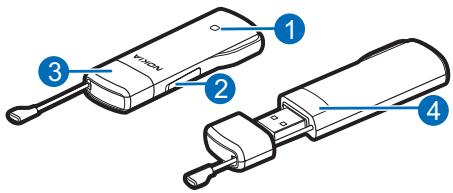
The device contains the following parts:
- Indicator light
- Cover of the memory card slot
- USB plug, covered with a protection cap
- Cover of the SIM card slot
Antenna locations
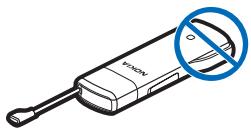
Your device has internal antennas. Avoid touching the antenna area unnecessarily while the antenna is transmitting or receiving. Contact with antennas affects the communication quality and may cause a higher power level during operation and may reduce the computer battery life.
natural_image
Illustration of a VAC device with a blue prohibition symbol (no text or labels)Insert the SIM card

Warning: Keep the cap out of the reach of small children.
- Remove the protection cap (1).
- Lift the cover of the SIM card slot (2).
- Insert the SIM card (3).
Ensure that the contact surface on the card is facing down, and the bevelled corner is on the right.
- To close the cover, press it against the device (4), and slide it into place.

natural_image
Illustration of a USB flash drive with a blue arrow indicating the pin (no text or symbols present)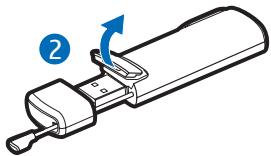
natural_image
Diagram of a cylindrical device with a lever and arrow indicating rotation (no text or symbols)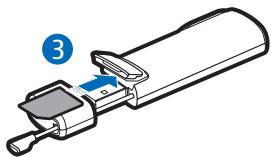
natural_image
Diagram of a device with a labeled component (3) showing internal components and directional arrows, no text or symbols present.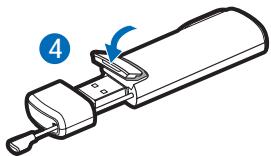
natural_image
Diagram of a cylindrical device with a labeled component and arrow indicating rotation (no text or symbols present)First time setup
To set up the device for your computer, you may need the administrator rights for the operating system. You may also need to change the firewall settings of your operating system to let the device access the internet.
Microsoft Windows
If you have a supported version of the Microsoft Windows operating system (see "Supported hardware and software", p. 8), do the following:
- Ensure that a SIM card is inserted in the device.
- Remove the protection cap from the USB plug.
- Switch on your computer, and connect the device to the USB port on the computer so that the Nokia logo is facing up.

Tip: The device can also be connected to a compatible computer using the Nokia Connectivity Cable CA-150D. Connect one end of the cable to the USB plug and the other end to the USB port on the computer.
If you have enabled the autorun feature in Windows, the device installs the Nokia Internet Modem application and the needed drivers on the computer. When the operating system finds the device, let it install the device software automatically. The installation may take several minutes.
- When prompted, select the desired language from the list and OK. Follow the displayed instructions.
When prompted, carefully read through the end-user licence agreement. To accept the agreement and use the device, select the box and Next >.
- Based on your SIM card, the device automatically tries to define the settings for the cellular network of your service provider (operator).
The device includes predefined settings for many service providers. If the device cannot detect your service provider, you can define the settings manually in the Nokia Internet Modem application. For details, see the user guide for the application.
- When prompted, enter the personal identification number (PIN) code or the universal personal identification number (UPIN) of your SIM card. The main view of the Nokia Internet Modem application is displayed.
The (U)PIN code helps to protect your SIM card and is usually supplied with the card.
-
To exit the Nokia Internet Modem application, select the application icon in the Windows system tray, and select Exit.
-
To disconnect the device from the computer, unplug the device from the USB port. You may need to stop the device in the operating system before disconnecting it. For details, see the user guide of your operating system.
To connect to the internet, see "Set up a connection", p. 17.
To define settings related to the device (such as the PIN code request), network connections, and the Nokia Internet Modem application, select Help in the main view of the application.
Apple Mac OS
If you have a supported version of the Apple Mac OS operating system, do the following:
- Ensure that a SIM card is inserted in the device.
- Remove the protection cap from the USB plug.
- Switch on your computer, and connect the device to the USB port on the computer so that the Nokia logo is facing up.

Tip: The device can also be connected to a compatible computer using the Nokia Connectivity Cable CA-150D. Connect one end of the cable to the USB plug and the other end to the USB port on the computer.
- Double-click the Nokia Internet Stick CS-18 setup icon that is displayed in the desktop, and double-click the Nokia Internet Modem icon.
The installer opens and installs the Nokia Internet Modem application and the needed drivers on the computer. Follow the displayed instructions. The installation may take several minutes.
When prompted, carefully read through the end-user licence agreement and accept it if you want to use the application and the device.
- When prompted, select the detect icon so that the installer can recognise the device and SIM card. Based on the SIM card, the device automatically tries to define the settings for the cellular network of your service provider (operator).
The device includes predefined settings for many service providers. If the device cannot detect your service provider, you can define the settings manually. See "Edit and manage connection settings", p. 19.
- When the Nokia Internet Modem application opens, enter the personal identification number (PIN) code or the universal personal identification number (UPIN) of your SIM card when prompted.
The code helps to protect your SIM card and is usually supplied with the card.
- To exit the application, select the red icon.
- To disconnect the device from the computer, unplug the device from the USB port after exiting the application.
To connect to the internet, see "Set up a connection", p. 17.
If you want to uninstall the Nokia Internet Modem application, select the uninstall icon in the Nokia folder.
■ Indicator light for a network connection
If the indicator light is red, the device cannot register to a cellular network because the SIM card is not valid or properly inserted. Check that the SIM card is valid and properly in place. If the red light flashes, the device is not registered to a cellular network because you have not entered the PIN or UPIN code, if the PIN code request is enabled in the Nokia Internet Modem application (available only in the Windows version).
If the indicator light is green, the device is registered to a GSM network and transferring data. If the green light flashes, the device is registered to a GSM network but the data connection is not active.
If the indicator light is blue, the device is registered to a UMTS network and is transferring data. If the blue light flashes, the device is registered to a UMTS network but the data connection is not active.
Insert a microSD card
The device includes a microSD card reader that you can use to save files to your compatible memory card. The memory card is shown as a removable disk in your operating system.
Keep all microSD memory cards out of the reach of small children.
Use only compatible microSD cards approved by Nokia for use with this device. Nokia uses approved industry standards for memory cards, but some brands may not be fully compatible with this device. Incompatible cards may damage the card and the device and corrupt data stored on the card.
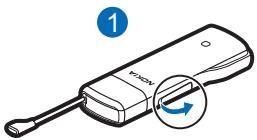
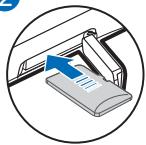
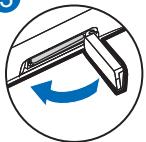
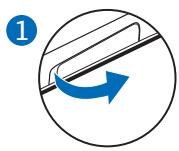
To insert a microSD card:
- Open the cover of the memory card slot (1).
Get started
- When the Nokia text is facing up, insert the card into the slot with the contact surface facing down (2).
- Close the cover (3).
2
natural_image
Illustration of a printer with a blue arrow pointing to a paper sheet, enclosed in a circular frame (no text or symbols)3
natural_image
Diagram of a mechanical component with a blue curved arrow indicating rotation (no text or symbols)To remove the card, open the cover (1), press the card gently (2) and pull it out, and close the cover (3).
natural_image
Circular icon with a blue arrow and number 1, no text or symbols present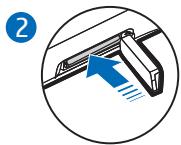
natural_image
Diagram showing a mechanical assembly with an arrow indicating direction, no text or symbols present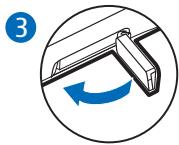
natural_image
Circular icon showing a mechanical component with a blue curved arrow indicating rotation (no text or symbols)3. Set up a connection
For the availability of data services, pricing, and tariffs, contact your service provider.
Microsoft Windows
To connect to the internet if you have a supported version of the Microsoft Windows operating system (see "Supported hardware and software", p. 8):
- When a SIM card is inserted in the device, switch on the computer, and connect the device to the computer.
If the Nokia Internet Modem application does not open automatically, start the application in the normal way in your operating system (for example, in Microsoft Windows XP, select Start > Programs > Nokia Internet Modem > Nokia Internet Modem). - If prompted, enter the PIN or UPIN code of your SIM card.
The main view of the Nokia Internet Modem application is displayed. - Check the network indicator light to see whether a network connection is available. For details, see "Indicator light for a network connection", p. 14.
- To connect to the internet using the default connection profile, in the Nokia Internet Modem application, select . Start using the connection with the software you want.
If the computer enters standby or hibernation mode, data transfer may stop. Using the device for data transfer increases the demand on computer battery power and reduces the battery life.
- To view details about the connection, select Statistics in the pop-up window that is displayed during data transfer.
- To end the connection, select ✝ in the Nokia Internet Modem application or Disconnect in the pop-up window.
To exit the Nokia Internet Modem application, select the application icon in the Windows system tray, and select Exit.
Apple Mac OS
To connect to the internet if you have a supported version of the Apple Mac OS operating system:
- When a SIM card is inserted in the device, switch on the computer, and connect the device to the computer.
If the Nokia Internet Modem application does not open automatically, select the application from the Finder, or select the Nokia folder and Nokia Internet Modem.
- If prompted, enter the PIN or UPIN code of your SIM card.
The main view of the Nokia Internet Modem application is displayed.
-
Check the network indicator light to see whether a network connection is available. For details, see "Indicator light for a network connection", p. 14.
-
To connect to the internet, select the connect icon. Start using the connection with the software you want.
If the computer enters standby or hibernation mode, data transfer may stop. Using the device for data transfer increases the demand on computer battery power and reduces the battery life.
The amount of data sent and received during the current session is shown during data transfer.
- To end the connection, select the disconnect icon.
To exit the Nokia Internet Modem application, select the red icon.
To minimise the application without ending the active connection, select the yellow icon. To open the application window, select the application icon at the bottom of the screen.
Edit and manage connection settings
The connection settings are grouped in operator profiles. To edit or add a profile or manage the profiles, select the wheel icon in the main view of the Nokia Internet Modem application, and select the desired option.
Follow the displayed instructions. For the correct settings, contact your service provider.
View details about previous connections
To view information about previous connections, select the clock icon in the main view of the Nokia Internet Modem application. To delete the
Set up a connection
entire history, select the clear icon. To save the history as a file on your computer, select the export icon.
Taking care of your device
Your device is a product of superior design and craftsmanship and should be treated with care. The following suggestions will help you protect your warranty coverage.
- Keep the device dry. Precipitation, humidity, and all types of liquids or moisture can contain minerals that will corrode electronic circuits. If your device does get wet, allow it to dry completely.
- Do not use or store the device in dusty, dirty areas. Its moving parts and electronic components can be damaged.
- Do not store the device in high or cold temperature. High temperatures can shorten the life of electronic devices, damage batteries, and warp or melt certain plastics. When the device warms to its normal temperature from a cold temperature, moisture can form inside the device and damage electronic circuit boards.
- Do not attempt to open the device other than as instructed in this guide.
- Do not drop, knock, or shake the device. Rough handling can break internal circuit boards and fine mechanics.
- Do not use harsh chemicals, cleaning solvents, or strong detergents to clean the device. Only use a soft, clean, dry cloth to clean the surface of the device.
- Do not paint the device. Paint can clog the moving parts and prevent proper operation.
These suggestions apply equally to your device or any accessory.
Recycle
Always return your used electronic products, batteries, and packaging materials to dedicated collection points. This way you help prevent uncontrolled waste disposal
Taking care of your device
and promote the recycling of materials. Check product environmental information and how to recycle your Nokia products at www.nokia.com/werecycle, or nokia.mobi/werecycle.

The crossed-out wheeled-bin symbol on your product, battery, literature, or packaging reminds you that all electrical and electronic products, batteries, and accumulators must be taken to separate collection at the end of their working life. This requirement applies in the European Union. Do not dispose of these products as unsorted municipal waste. For more environmental information, see the product Eco-Declarations at www.nokia.com/environment.
Additional safety information
Small children
Your device and its accessories are not toys. They may contain small parts. Keep them out of the reach of small children.
Operating environment
This device model has been tested and meets RF exposure guidelines when positioned at least 0.5 centimetres (1/5 inches) away from the body when plugged directly into a USB port on the host device or used at the end of the Nokia Connectivity Cable CA-150D supplied in the sales package.
■ Medical devices
Operation of any radio transmitting equipment, including wireless phones, may interfere with the functionality of inadequately protected medical devices. Consult a physician or the manufacturer of the medical device to determine if they are adequately shielded from external RF energy. Switch off your device when regulations posted instruct you to do so. Hospitals or health care facilities may use equipment sensitive to external RF energy.
Implanted medical devices
Manufacturers of medical devices recommend a minimum separation of 15.3 centimeters (6 inches) between a wireless device and an implanted medical device, such as a pacemaker or implanted cardioverter defibrillator, to avoid potential interference with the medical device. Persons who have such devices should:
- Always keep the wireless device more than 15.3 centimeters (6 inches) from the medical device.
Additional safety information
- Turn the wireless device off if there is any reason to suspect that interference is taking place.
- Follow the manufacturer directions for the implanted medical device.
If you have any questions about using your wireless device with an implanted medical device, consult your health care provider.
Hearing aids
Some digital wireless devices may interfere with some hearing aids.
Vehicles
RF signals may affect improperly installed or inadequately shielded electronic systems in motor vehicles such as electronic fuel injection, electronic antilock braking, electronic speed control, and air bag systems. For more information, check with the manufacturer of your vehicle or its equipment.
Only qualified personnel should service the device. Faulty service may be dangerous and may invalidate your warranty. Do not store or carry flammable liquids, gases, or explosive materials in the same compartment as the device, its parts, or accessories.
Switch off your device before boarding an aircraft. The use of wireless teledevices in an aircraft may be dangerous to the operation of the aircraft and may be illegal.
■ Potentially explosive environments
Switch off your device in any area with a potentially explosive atmosphere. Obey all posted instructions. Sparks in such areas could cause an explosion or fire resulting in bodily injury or death. Switch off the device at refuelling points such as near gas pumps at service stations. Observe restrictions in fuel depots, storage, and distribution areas; chemical plants; or where blasting operations are in progress. Areas with a potentially explosive atmosphere are often, but not always, clearly
marked. They include areas where you would be advised to turn off your vehicle engine, below deck on boats, chemical transfer or storage facilities and where the air contains chemicals or particles such as grain, dust, or metal powders. You should check with the manufacturers of vehicles using liquefied petroleum gas (such as propane or butane) to determine if this device can be safely used in their vicinity.
■ Certification information (SAR)
This mobile device meets guidelines for exposure to radio waves.
Your device is a radio transmitter and receiver. It is designed not to exceed the limits for exposure to radio waves recommended by international guidelines. These guidelines were developed by the independent scientific organization ICNIRP and include safety margins designed to assure the protection of all persons, regardless of age and health.
The exposure guidelines for mobile devices employ a unit of measurement known as the Specific Absorption Rate or SAR. The SAR limit stated in the ICNIRP guidelines is 2.0 watts/kilogram (W/kg) averaged over 10 grams of tissue. Tests for SAR are conducted using standard operating positions with the device transmitting at its highest certified power level in all tested frequency bands. The actual SAR level of an operating device can be below the maximum value because the device is designed to use only the power required to reach the network. That amount changes depending on a number of factors such as how close you are to a network base station.
SAR values may vary depending on national reporting and testing requirements and the network band. Additional SAR information may be provided under product information at www.nokia.com.
This device model meets RF exposure guidelines when positioned at least 0.5 centimetres (1/5 inches) away from the body.
- Nokia Internet Stick CS-18 Quick Start Guide
- DECLARATION OF CONFORMITY
- C€0682
- Contents
- SAFETY 5
- Introduction ...... 7
- Get started 9
- Set up a connection...... 17
- Taking care of your device.... 21
- SWITCH ON SAFELY
- INTERFERENCE
- SWITCH OFF IN RESTRICTED AREAS
- QUALIFIED SERVICE
- WATER-RESISTANCE
- About your device
- SAFETY
- Network services
- Introduction
- Read the user guide for the Nokia Internet Modem application
- ■ Supported hardware and software
- Get started
- Parts
- Antenna locations
- Insert the SIM card
- First time setup
- Microsoft Windows
- Apple Mac OS
- ■ Indicator light for a network connection
- Insert a microSD card
- Get started
- Set up a connection
- Edit and manage connection settings
- View details about previous connections
- Taking care of your device
- Recycle
- Additional safety information
- Small children
- Operating environment
- ■ Medical devices
- Implanted medical devices
- Hearing aids
- Vehicles
- ■ Potentially explosive environments
- ■ Certification information (SAR)
Brand : NOKIA
Model : INTERNET STICK CS-18
Category : 3G/4G Key